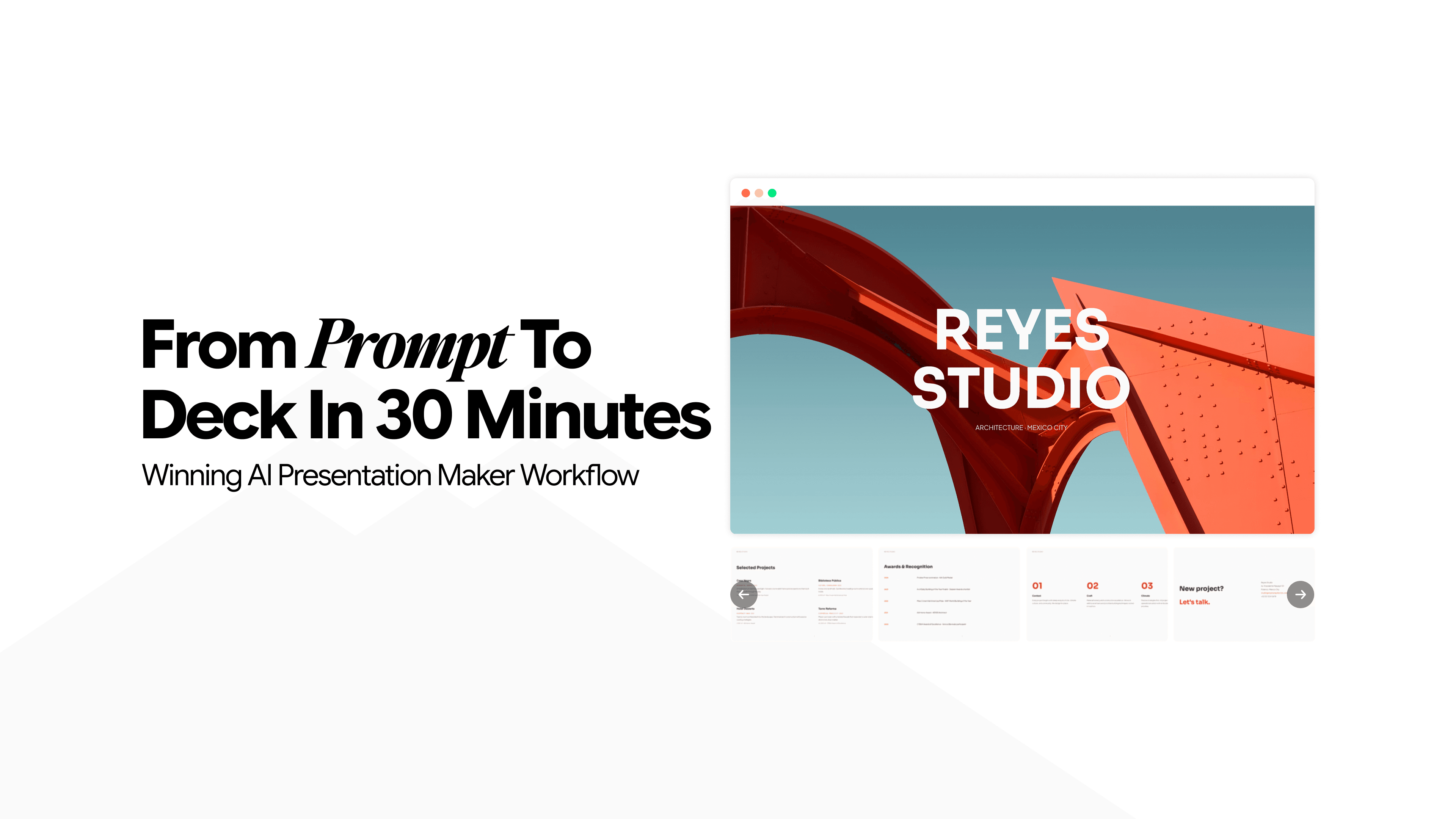
From Prompt to Deck in 30 Minutes – Winning AI Presentation Maker Workflow
Most people think the hard part is the design.
It isn't. At least not anymore. With the introduction of AI presentation makers, users get access to countless design templates, as well as, the ability to generate a design through natural language.
And there lies the new difficulty. What words to use as you ask for a design or content for your next deck.
The hard part now is knowing exactly what to type before you touch the tool. Get that wrong, and 30 minutes turns into 90. Get it right, and you walk away with a deck you're actually confident presenting.
This isn't a breakdown of the best AI slide generators and which one you should pick. This guide is for people who have already chosen a tool and want to use it fast, correctly, and without wasted effort.
Here's how to go from a blank page to a finished deck in 30 minutes.
Why the First 10 Minutes Make or Break the Whole Session
Before you open any tool, understand where the time actually disappears.
Most people sit down with a vague idea and start prompting immediately. The AI generates something. It looks close but not quite right. They start editing slide by slide, realize the structure is off, and end up rebuilding from scratch.
That loop might sometimes occur because AI underperformed. But most of the time it happens because the input was too thin to produce anything useful.
Vague prompts produce vague decks. So, instead of frantically switching to newer tools, try fixing your prompts for a better result.
The Anatomy of a Prompt That Actually Works
A strong presentation prompt has five components. Skip even one, and the output gets noticeably weaker.
1. Topic Plus Purpose
"A presentation about project management" gives the AI almost nothing. "A 7-slide pitch explaining why our project management process reduces delivery time by 30%, aimed at a skeptical operations director" gives it everything.
2. Audience
Who is in the room? A technical audience wants specifics. An executive audience wants outcomes. The same topic presented to both groups requires different language, different depth, and different slide structure.
3. Desired Slide Count or Structure
You can specify a number or a narrative arc. Eight slides works well as a default. Alternatively, give it a structure: problem, context, solution, proof, next step. Either approach prevents the AI from bloating your deck with filler slides.
4. Tone
Investor-ready, internal team update, client-facing, and training presentation all call for different tones. Name it explicitly in the prompt.
5. Output Expectations
Do you need speaker notes? Data placeholders? A specific call to action on the final slide? State it upfront. Asking for this after the fact adds rounds of back-and-forth that eat into your 30 minutes.
Here is what the difference looks like in practice.
Weak prompt: Make me a sales presentation.
Strong prompt: Create an 8-slide sales deck for a B2B SaaS product targeting HR directors at mid-sized companies. The tone should be confident and direct. Include a problem slide, a solution overview, three key benefits, a pricing context slide, and a closing CTA asking for a follow-up call. Add short speaker notes to each slide.
Same tool. Completely different output.
The 30-Minute Workflow, Broken Down
If you find the process difficult, we will make it simpler for you. Here is exactly how to structure your time.
Minutes 0 to 5: Define before you type
Write down three things in plain language before you open the tool:
- the goal of this deck
- who is receiving it
- the single most important point they should leave with
This takes five minutes. It saves fifteen.
Minutes 5 to 10: Build and submit your prompt
Use the five-component structure above. Write the prompt in a notes app or document first, review it once, then paste it into the tool. Submit it and let the AI generate the first draft without interruption.
Minutes 10 to 18: Review structure only, not words
Read the slide titles. Ignore the body copy for now.
- Does the deck tell a coherent story from start to finish?
- Does it move logically from the problem to the solution to the ask?
If the sequence is off, fix it here. Reordering slides takes seconds. Rewriting content you've already edited takes much longer.
Minutes 18 to 25: Sharpen the two slides that carry the most weight
Every deck has two slides that do the heavy lifting. Usually the problem slide, which earns attention, and the closing slide, which drives action. These are the two slides worth spending real effort on. Regenerate them with a more specific prompt if needed, or refine them manually. Leave the rest largely as-is for now.
Minutes 25 to 30: Visual pass and export
Check that fonts are consistent. Swap placeholder images if the tool included any. Confirm the color scheme is appropriate for the audience. Export. You are done.
If you have never used an AI presentation tool before and want a broader walkthrough of the full creation process, this step-by-step guide on how to create a presentation using AI is a useful starting point before applying this workflow.
What AI Handles Well and the One Slide You Should Write Yourself
Understanding where AI adds the most value helps you stop second-guessing the output and start trusting it faster.
AI consistently produces strong results on:
- Agenda and structure slides, where the goal is clarity and organization
- Problem or market context slides, where the content is largely factual
- Feature or benefit breakdowns, where information needs to be chunked into parallel points
- Summary and transition slides, which follow predictable formats
These slide types are well-suited to AI because they follow patterns. The AI has processed thousands of examples and understands what works structurally.
The one slide you should always write yourself is the closing slide.
Generic closings like "Thank you" or "Questions?" waste the most valuable real estate in your deck.
The final slide should be specific to what you actually want the audience to do next. A follow-up meeting. A demo booking. A budget approval. A decision. No AI tool can determine that without you telling it explicitly, and even when you do, this slide benefits from a human touch that reflects your voice and intent.
This is one of the meaningful differences between AI-assisted decks and fully manual ones, and it is worth understanding clearly. This comparison of AI presentation makers versus PowerPoint goes deeper on where the boundaries are and where each approach has the edge.
Three Prompt Mistakes That Cost You Time
Now that we have discussed best practices for prompt writing, lt’s discuss some mistakes that can cost you time and resources.
- Prompting by topic instead of outcome: Topic tells the tool what to talk about. Outcome tells it what the deck needs to accomplish. The second one produces a far more useful first draft.
- Asking for too many slides upfront: A 20-slide first draft is slower to review, harder to restructure, and more tempting to over-edit. Start with 7 to 9 slides. Expand only after the core narrative is solid.
- Editing slide by slide from slide one: Editing content before you have confirmed the structure means you may end up polishing slides you will later cut or reorder. Always confirm the sequence before touching individual copies.
Conclusion
A 30-minute deck is not a shortcut. It is a disciplined process that produces a clear, structured, audience-appropriate first draft fast.
The goal is not perfection. The goal is a deck that lets you focus on the conversation instead of scrambling to finish the slides before it starts. When your structure is sound and your key slides are sharp, the presentation does its job.
In this new age of presentation workflows, the prompt is the work. Everything after it is execution.
Frequently Asked Question
Stop wasting time. Start creating impactful and visually stunning slides in no time.
More topics you may like

AI Presentation Maker vs PowerPoint: Why the Old Way Is Costing You More Than You Think

Lucas Reinhardt
Best AI Slide Generators for Creating Presentations Faster

Daniel Mercer
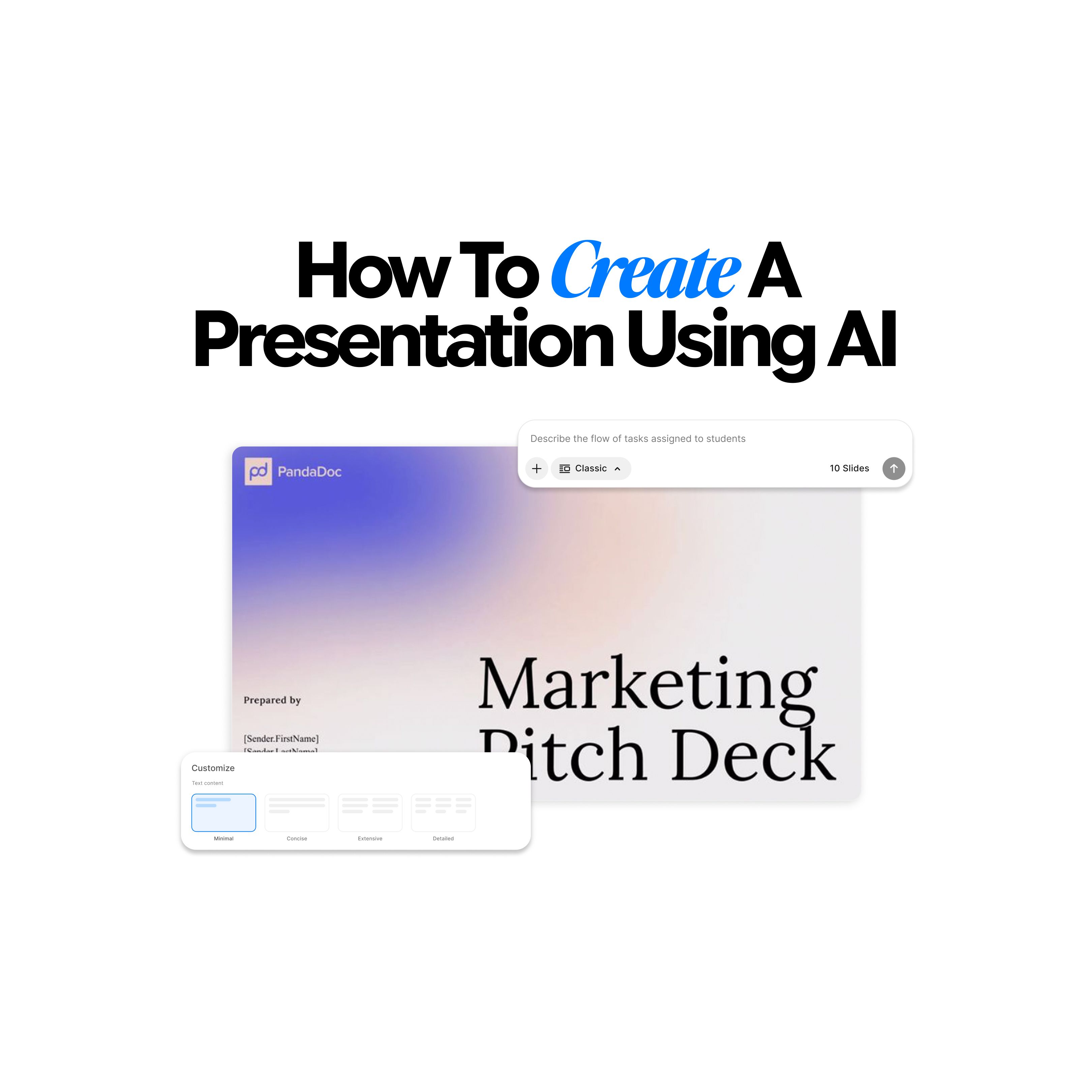
How to Create a Presentation Using AI

Maya Collins
What are AI Presentation Makers? How Are They Making a Bigger Impact With Better Slides?
Maya Collins
How to Create an Outstanding Resume Using AI Resume Builder (Secret Sauce = Chatly’s AI Docs)

Faisal Saeed