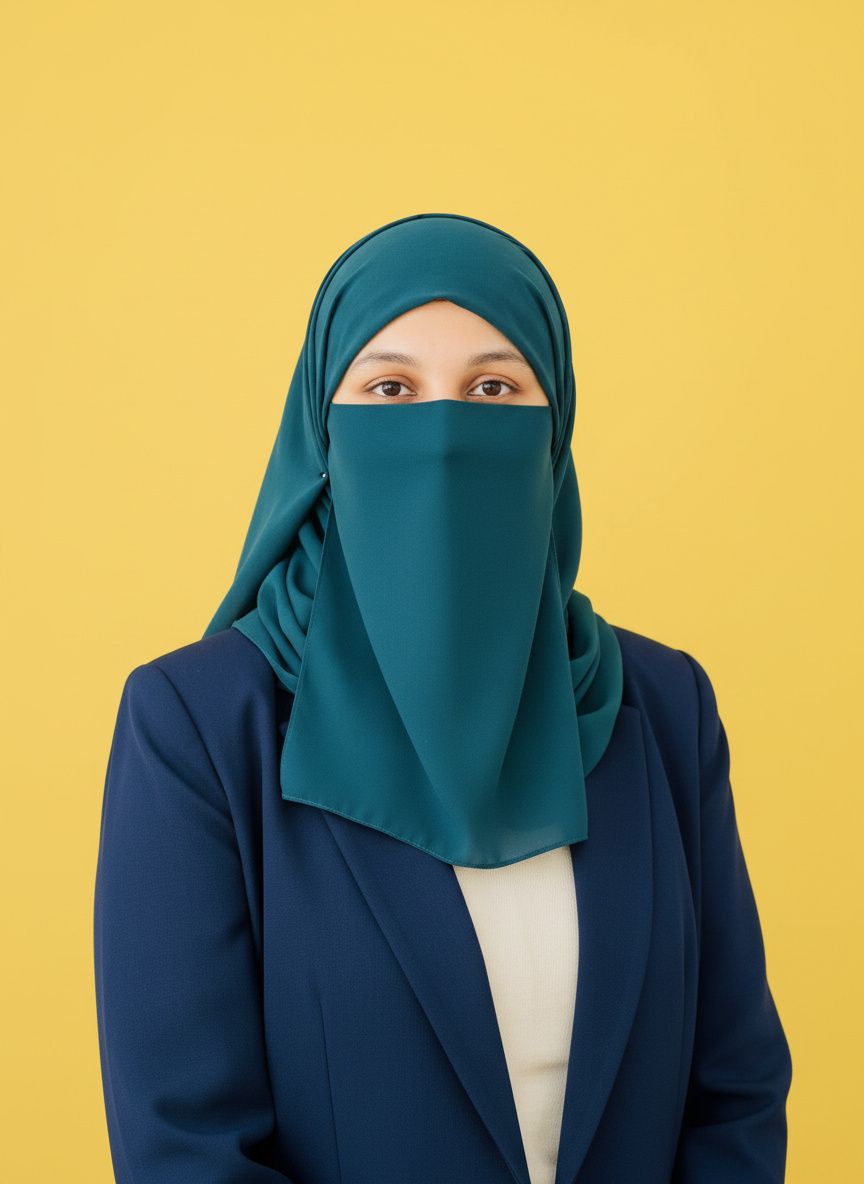
What Is GPT Image 2? Features, Capabilities, and How to Get Started
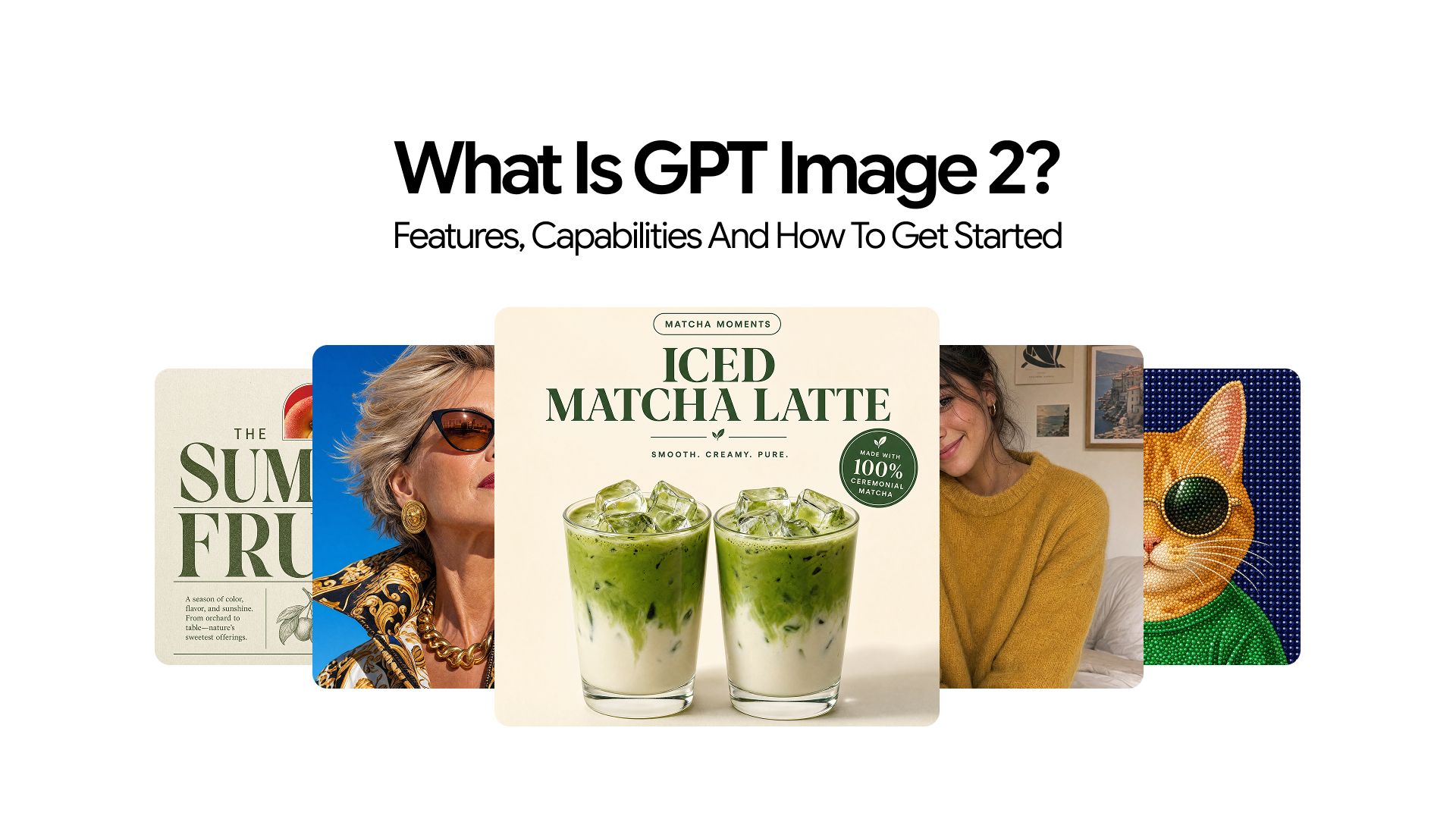
Most AI image generators have spent years getting better at the same thing: producing prettier pictures from vague prompts. GPT Image 2 takes a different approach. Instead of simply refining visual quality, OpenAI built a model that genuinely understands what you are asking for, including the exact words you want to appear inside an image. That shift changes what is actually possible for marketers, designers, developers, and anyone creating visual content at scale.
This article covers exactly what GPT Image 2 is, what makes it different from everything that came before it, what it can produce, and how you can start using it today.
What Is ChatGPT Images 2.0?
ChatGPT Images 2.0 is OpenAI's latest AI image generation model, released in April 2026. It is built on the GPT-4o multimodal architecture, which means it processes language and visual information together rather than as two separate tasks. That architectural difference is what gives it capabilities no previous OpenAI image model had.
In the OpenAI API, this model is identified as gpt-image-2. It is commonly referred to as GPT Image 2 across the community, tech press, and product documentation outside of the raw API reference.
The model represents a substantial step beyond DALL·E 3, not just in output quality but in what it is fundamentally capable of producing.
The Core Features That Set GPT Image 2 Apart
GPT Image 2 is not simply a more powerful version of what came before. Several of its capabilities are genuinely new territory for AI image generation. Here is what each feature actually does and why it matters in practice.
Generating Legible, Styled Text Inside Images
Text rendering is GPT Image 2's most significant improvement over any previous image model. The model can generate legible, accurately spelled, and properly formatted text embedded directly inside an image, covering banners, posters, product labels, packaging designs, UI mockups, signage, and any context where words need to appear as part of the visual.
The capability extends well beyond single words. GPT Image 2 handles:
- Multi-word phrases with correct spacing and alignment
- Varied font weights and styles (sans-serif, serif, bold, handwritten)
- Precise text placement within compositions
For any workflow involving text-heavy visuals, this is not an incremental upgrade—it is a category shift. Our GPT Image 2 Prompt Guide explains how to structure prompts for consistent text-in-image results.
Example Prompt:
Create a high-resolution, professional marketing poster for a modern digital branding agency in a 16:9 aspect ratio.
The design should feature clean, well-structured, and fully legible text integrated naturally into the image.
Include the following exact text elements with perfect spelling, spacing, and alignment:
Main Heading (large, bold, modern sans-serif):
“Build a Brand That Speaks Before You Do”
Subheading (medium weight, clean alignment):
“Strategy. Design. Growth. Powered by Intelligence.”
Body Text (small, readable, well-spaced):
“We help ambitious businesses craft meaningful brand identities through data-driven strategy, high-end design, and AI-powered marketing systems.”
CTA Button Text (bold, high contrast):
“Start Your Brand Journey”
For a detailed breakdown of how text rendering has improved from the previous models, see our full comparison of GPT Image 2 vs DALL-E 3.
Producing Photorealistic Output Across Subjects and Settings
GPT Image 2 generates images that are often indistinguishable from real photographs, especially in product photography, food imagery, architectural visualization, and environmental scenes.
The realism comes from its understanding of:
- Lighting behavior (natural, studio, directional light)
- Material textures (leather, glass, metal, fabric)
- Depth of field and focus control
- Scene composition and spatial logic
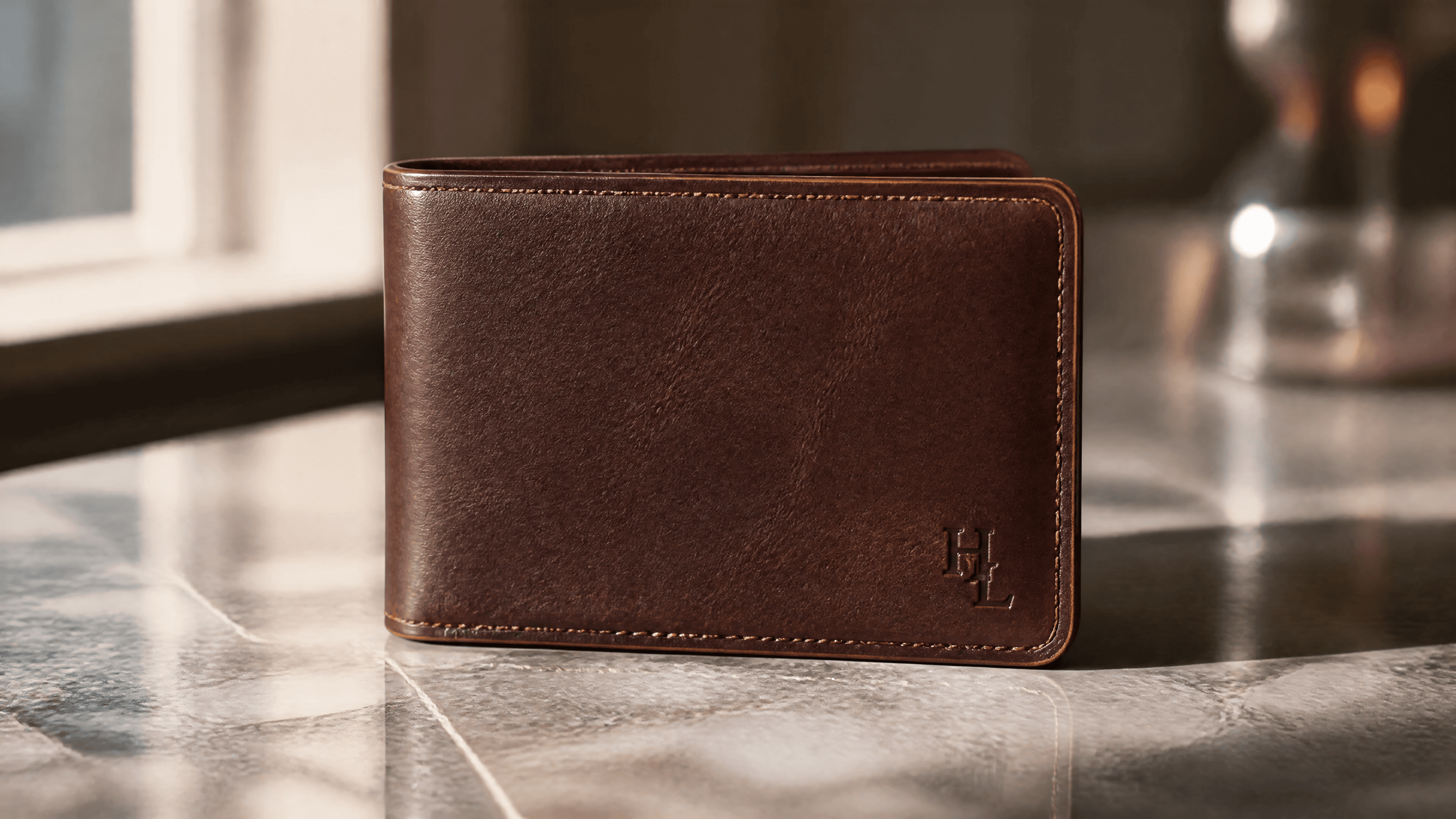
For example, a prompt like “a leather wallet on a marble surface with window light” produces:
- Accurate light falloff
- Realistic marble texture variation
- Convincing leather surface detail
Example Prompt:
The composition should feel like a high-end commercial product shoot with extreme attention to material detail and lighting realism.
The image must accurately demonstrate:
- Realistic light falloff from a nearby window, with soft directional shadows
- Natural variation in marble texture, including subtle veins and imperfections
- Highly detailed leather surface with visible grain, stitching, and edge wear
- Subtle reflections on the marble without overexposure
This is not just a visual enhancement — it reflects deeper compositional intelligence.
For marketers and creators, this enables production-quality visuals without photography setups or stock image licensing.
Following Complex, Multi-Element Prompts With Precision
ChatGPT Images 2.0 understands and executes detailed prompts with significantly higher accuracy than previous models.
It can follow instructions such as:
- Object placement in specific spatial positions (foreground, background, left/right)
- Maintaining consistent color palettes across multiple elements
- Preserving lighting conditions across a full scene
- Handling conditional descriptions like “a glass jar with a white label and black text.”
This is powered by its GPT-4o multimodal architecture, which interprets full semantic meaning before generating images instead of converting prompts into fragmented visual tokens.
The result is:
- More accurate outputs
- Fewer iterations needed
- More predictable image generation
Editing Specific Regions of an Image Without Regenerating Everything
ChatGPT Images 2.0 supports inpainting-based editing, allowing targeted modifications inside an image while preserving everything else.
You can:
- Change backgrounds
- Replace objects
- Adjust colors or lighting
- Remove elements
This works through:
- ChatGPT interface
- OpenAI API via POST /v1/images/edits
Instead of regenerating full images for small changes, you only edit what is needed, saving time and preserving composition consistency.
Using Real-World Knowledge for Contextually Accurate Imagery
Because GPT Image 2 is built on GPT-4o, it integrates real-world understanding into image generation.
It understands:
- Geographic and architectural contexts
- Product and brand design conventions
- Historical visual styles
- Cultural and aesthetic references
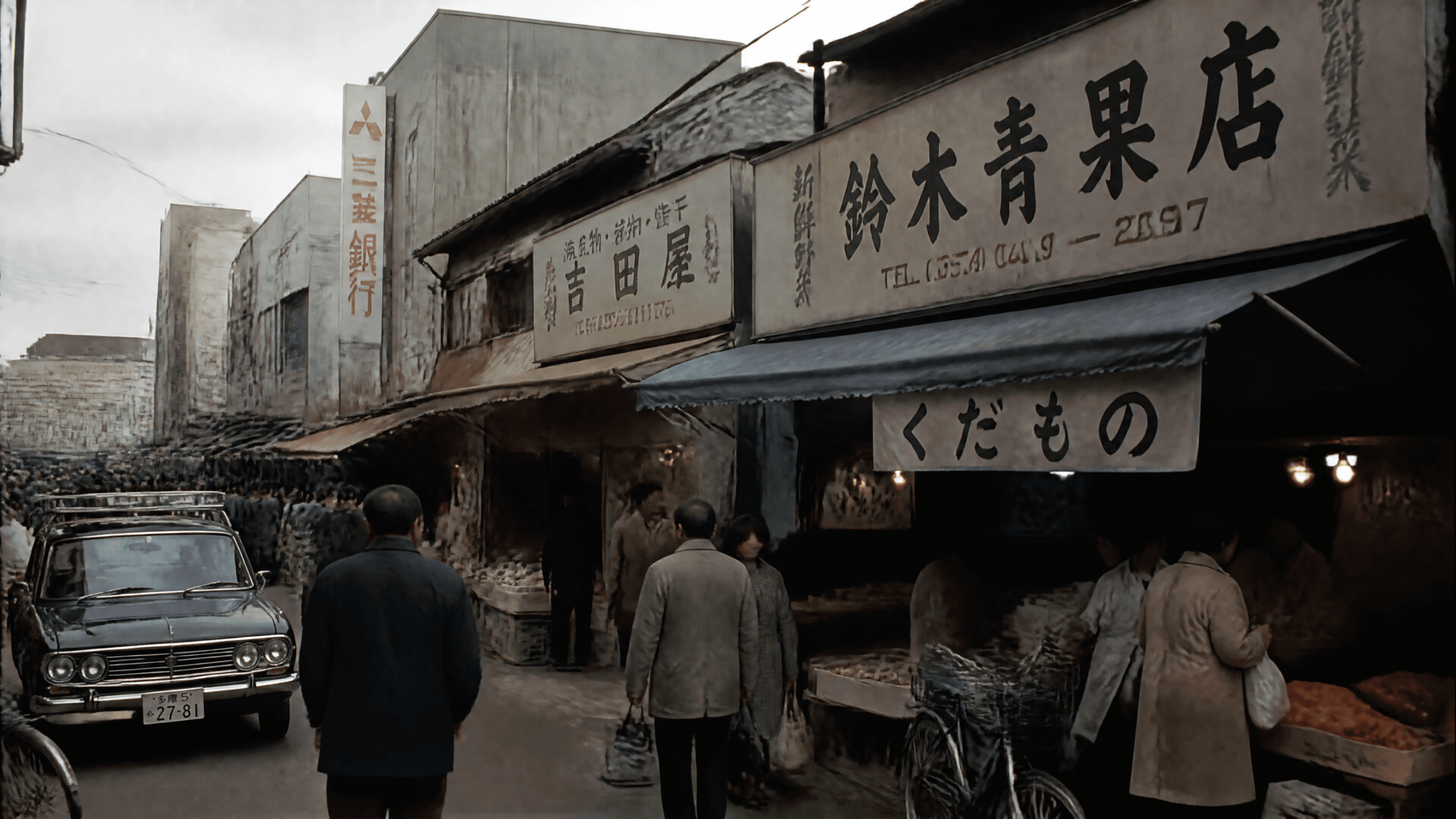
For example, a prompt like “a 1970s Tokyo street market” produces:
- Era-accurate signage
- Correct clothing styles
- Contextually appropriate architecture
This avoids generic or historically inaccurate outputs and produces more believable scenes.
Example Prompt:
Generate a photorealistic, historically accurate street scene of a Tokyo marketplace in the 1970s. The image must strictly reflect the time period with no modern elements.
The scene should include:
- Japanese street signage consistent with the 1970s (hand-painted, early print typography, no modern fonts or digital signage)
- People dressed in authentic 1970s Japanese fashion (simple fabrics, muted colors, period-correct hairstyles)
- Architecture reflecting post-war Tokyo commercial streets (low-rise buildings, aged storefronts, analog signage, visible wear)
- Traditional market activity such as small vendors, street stalls, bicycles, and period-accurate vehicles
Who GPT Image 2 Is Actually Built For
GPT Image 2 covers a wide range of practical output categories, but it serves some workflows better than others. Understanding where it genuinely excels helps set the right expectations before you commit to it.
Here's where it performs strongest:
- Marketing & Content Creation — Social media assets, ad creatives, editorial imagery, and product photography at professional publication quality. Particularly strong for campaigns requiring text-bearing graphics or product-adjacent imagery.
- Design & Prototyping — UI mockups, brand asset concepts, packaging previews, and logo explorations. Transparent background support and detailed compositional brief-following make it useful in early-stage design workflows where speed matters more than pixel-perfect polish.
- Education & Publishing — Diagrams, explainer illustrations, conceptual cover art, and visual reference materials. Complex diagrams with labeled elements and specific spatial relationships are achievable from a well-written prompt.
- Development & Automation — API access opens up image generation pipelines, content automation tools, and SaaS product integrations. Per-image pricing and quality tiers give developers direct cost control over volume and quality.
For users focused specifically on hyperrealistic human portrait photography or character consistency across a series of images, tools like ImagineArt offer distinct strengths in those categories that GPT Image 2 does not currently match.
How to Access GPT Image 2 ?
There are three main routes to using GPT Image 2 are ChatGPT, Chatly, or ImagineArt. For full pricing details, see our pricing breakdown.
1. Using GPT Image 2 Through the ChatGPT Interface
GPT Image 2 is available directly at chat.openai. Access tiers work as follows:
- Free users — Limited image generations per day
- Plus, Pro, Team & Enterprise — Higher generation limits and priority queue access
The workflow is simple: open a conversation, type your prompt, and the image generates inline. You can iterate by following up in the same conversation without starting over, then download via the icon below each output.
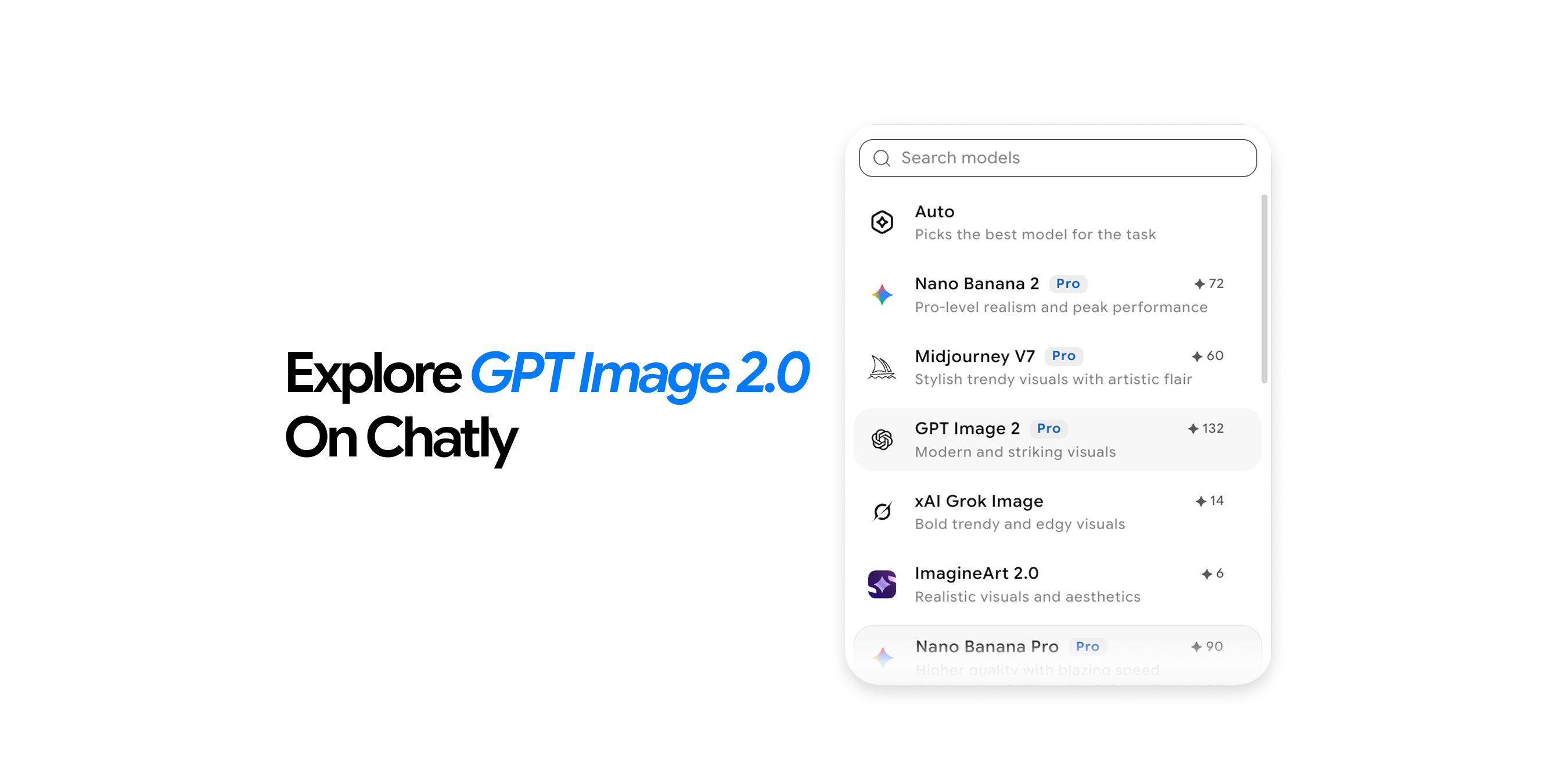
2. Using GPT Image 2 Through Chatly
Chatly offers GPT Image 2 as part of an all-in-one platform that combines multi-model AI chat, intelligent search, and image generation in a single workspace. Key capabilities include:
- 4K output with a reasoning-first architecture for precise, production-ready results
- Batch mode for generating multiple output variations in a single run
- Thinking mode for complex, multi-element prompts that require more deliberate composition
- Precision editing — fill areas, extend edges, erase objects, or remove backgrounds after generation
- Token-based pricing for predictable cost control across generation runs of any size
The workflow is straightforward: write your prompt, customize the aspect ratio or upload a reference image, hit Generate, and download in full resolution. A built-in Magic Prompt enhancer works in the background to fill context gaps and improve output quality automatically.
3. Using GPT Image 2 Through ImagineArt
ImagineArt gives access to GPT Image 2 alongside 50+ other AI models in one workspace, with 100 free daily credits and no payment required to start. Access points include:
- ImagineArt Web — Credit-based, no setup required, best for creators and teams wanting instant access
- GPT Image 2 App Page — Direct generation with optional reference image support for quick single-image outputs
- ImagineArt Workflows — Node-based pipelines for teams building reusable creative workflows
A key advantage here is model flexibility — you can switch between GPT Image 2, ImagineArt 2.0, and 50+ other models in the same workspace without switching tools. For a full walkthrough of generating with GPT Image 2 on ImagineArt, see their how-to guide.
Real Limitations Worth Knowing Before You Build a Workflow Around It
GPT Image 2 is a strong tool, but knowing its constraints upfront saves you from building expectations the model cannot meet:
- Complex multi-element scenes — Fine detail across many simultaneous elements can produce inconsistencies. Simpler compositions with one or two primary subjects are where it performs most consistently.
- Stylized faces — Non-photorealistic styles, particularly illustrations or cartoon aesthetics, can look off at smaller sizes. It is stronger at photorealistic human subjects than stylized character rendering.
- Generation speed — Output is not instant, particularly at high quality settings via the API. Factor in generation latency if you are building a time-sensitive pipeline.
- Free-tier limits — Meaningful generation caps and potential queuing during peak periods make the free tier functional for occasional use only, not regular creative workflows.
- Fine-art aesthetics — While the model can produce visually strong results, it is not primarily optimized for highly stylized, painterly, or fine-art outputs. If your workflow depends heavily on distinctive artistic styles or a strong visual signature, tools like Midjourney are often better suited for that kind of creative direction. For a deeper comparison, see our piece on GPT Image 2 vs Midjourney.
How to Generate Your First Image with GPT Image 2
No API setup or billing required to start. Here's a simple walkthrough using ChatGPT Image 2:
- Go to the platform and log in or create a free account.
- Open a new chat conversation.
- Type a specific, descriptive prompt. Instead of "a coffee cup," try: "A close-up product photograph of a white ceramic espresso cup on a dark wooden surface, soft morning light from the left, steam rising gently from the coffee, blurred warm cafe background."
- Wait for GPT Image 2 to generate the image — it appears inline in the conversation.
- Review the output. If something is not right, follow up in the same conversation: "Change the background to a white marble surface" or "Make the light warmer and more golden."
- Download the image using the download icon below the generated image.
Prompt specificity is the single biggest factor in output quality. For prompt structures that consistently produce strong results, see our GPT Image 2 Prompt Guide.
Find Out If GPT Image 2 Is Right for You
As of 2026, GPT Image 2 is the strongest general-purpose AI image generator for most real-world use cases. Three things set it apart:
- Text-in-image accuracy that is in a class of its own
- Photorealistic output that meets commercial quality standards
- The instruction following that reduces the iteration cycles required to get a usable result
For a full evaluation covering every dimension of the product, see our GPT Image 2 Review.
Frequently Asked Questions
See what others are asking about GPT Image 2
More topics you may like