Image to video AI
Bring a photo to life, keeping it as the first frame.
Bring a photo to life, keeping it as the first frame.
Examples
Each a different kind of image, swept from the still into the clip made from it.
- PhotoVideoA smiling grandmother in her rose garden, swept from the photo into the clip of her laughingPortrait1:1·1080p·5s
- PhotoVideoA glass perfume bottle on a rock in shallow sea, swept from the photo into waves washing around itProduct9:16·1080p·5s
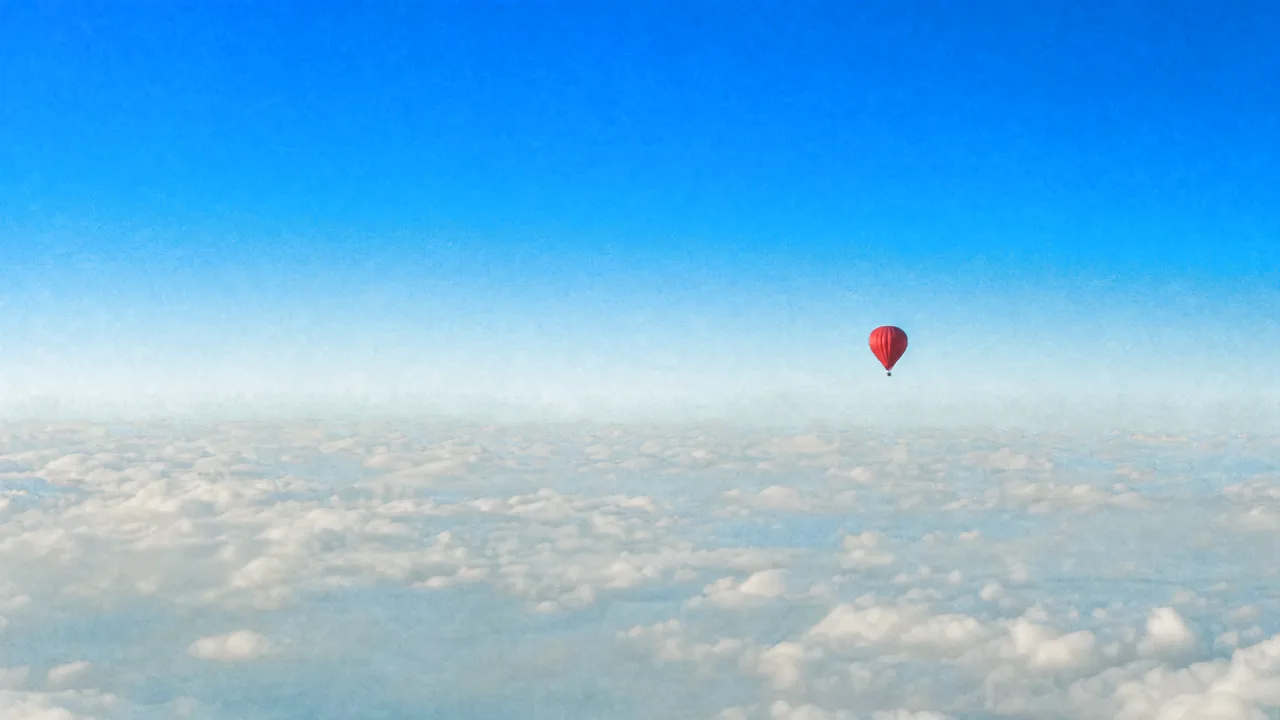
- PhotoVideoA waterfall in a green Icelandic valley, swept from the photo into the falling water and drifting cloudLandscape4:3·1080p·5s
- PhotoVideoA black-and-white 1960s photo of a bride and groom dancing, swept into the couple swayingOld photo4:3·1080p·5s
- PhotoVideoA watercolour fox in a snowy forest, swept from the painting into falling snowIllustration21:9·1080p·5s
- PhotoVideoA golden retriever with a red ball on a beach, swept from the photo into the dog waggingPet1:1·1080p·5s
- PhotoVideoA stack of pancakes, swept from the photo into maple syrup pouring down itFood1:1·1080p·5s
One prompt, one take
Add a reference
Describe the shotMake the waves roll in and the clouds drift, slow push-in toward the lighthouse
Write the shot
Generate the video
Features
Your image stays your image
The photo is the first frame, so the product, the face and the composition you chose are what the clip starts from.
Motion you direct
Describe what should move and what should stay still. The bottle stays sharp while the water around it ripples.
Camera moves
Push in, pull back, orbit or drift sideways. A still photo gets the camera move a shoot would have given it.
Faces and products held
Features, labels and shapes are kept steady as the clip moves, the place animated photos usually go wrong.
Several models to try
Run one image on more than one model and keep the take whose motion looks most natural.
Photos into a video
Animate a set of photos and cut them together to a beat, with captions, for a reel, an ad or a slideshow.
Who it’s for
Online shops
Product photos you already have, turned into short clips for product pages and ads without a video shoot.
Photographers and artists
Give a portfolio piece or an illustration a few seconds of motion for social posts and showreels.
Families and memories
An old family photo or a holiday picture brought to life for an anniversary, a birthday or a memorial.
Image to video AI at a glance
Bring a photo to life, keeping it as the first frame.
Frequently asked questions
What is image to video AI?
A video model that takes a still image as the first frame and generates the motion that follows, guided by a description of what should move.
What kind of images work best?
Clear, well-lit images with one main subject. Product shots, portraits and landscapes all work, from photos or generated images.
Will it change my product or face?
The image is kept as the opening frame and the model is told to hold its details. Compare takes and keep the one that stays truest.
Can I animate old photos?
Yes. Upload a scan of an old photo and describe a gentle motion, like a smile or the camera moving slowly in.
How long is each clip?
A few seconds per generation. Animate several images and cut them together on the timeline for a longer video.
Chatly on your phone and your Mac
Chatly for iPhone
Brief the cut on the train, approve the plan, and watch it render. Every video you make here is on your phone.
Download on the App Store
Chatly for Mac
Video on your desktop, with the product photos and footage you already have to hand.
Download for macOS