AI video background remover
Cut out the subject on every frame, no green screen.
Cut out the subject on every frame, no green screen.
Examples
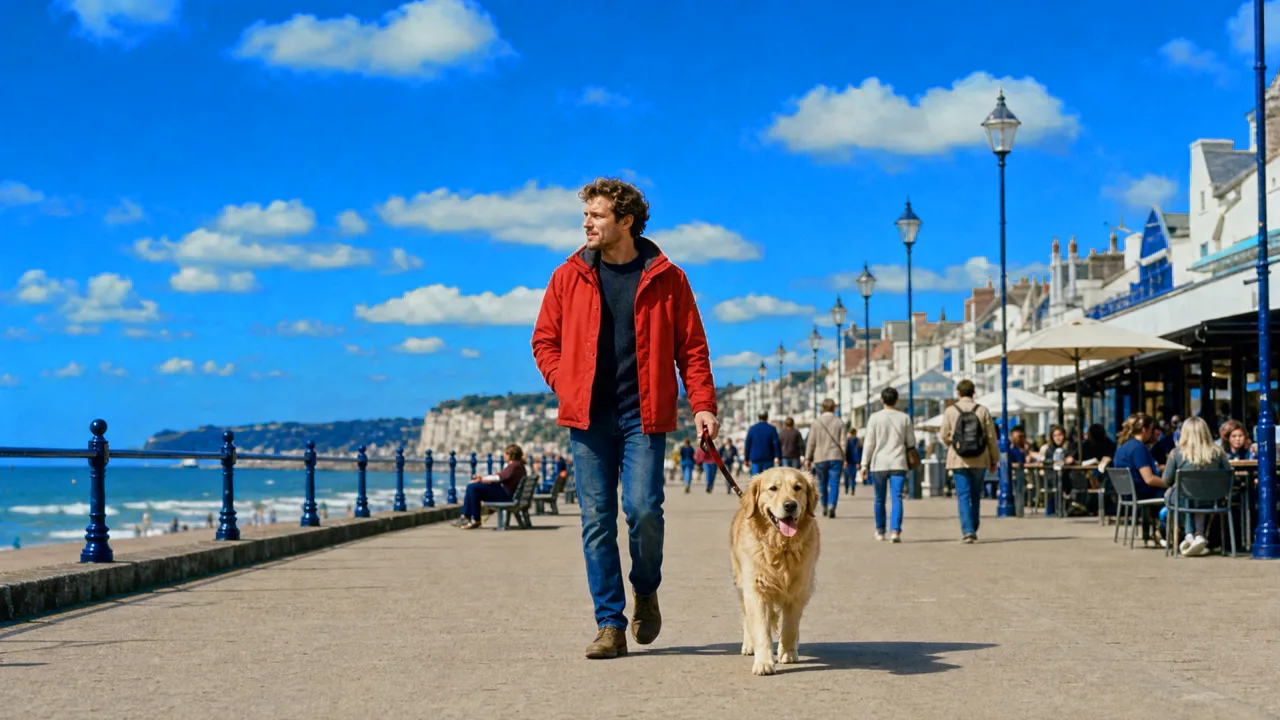
Each cut out on every frame, no green screen, in the ratio it was shot in.
- OriginalRemovedA woman in a mustard sweater talking to camera in a cluttered home officeTalking head1:1·1080p·5s
- OriginalRemovedA dancer grooving in a neon-lit underground car parkDance video9:16·1080p·5s
- OriginalRemovedA woman holding up a tan handbag in a crowded boutiqueProduct demo4:3·1080p·5s
- OriginalRemovedA corgi bounding through autumn leaves in a parkPet video4:3·1080p·5s
- OriginalRemovedA cyclist sprinting down a busy city street at duskSports21:9·1080p·5s
- OriginalRemovedA grey-haired man with flyaway curls laughing in a greenhouse full of plantsFlyaway hair1:1·1080p·5s
- OriginalRemovedA model in a trench coat walking a rainy street at nightFashion1:1·1080p·5s
One prompt, one take
Add a reference
Describe the shotCut me out of this desk recording and put a clean studio behind me
Write the shot
Generate the video
Features
Edges down to the hair
Flyaway hair, fingers and the gap under an arm are separated properly, which is where most background removers leave a halo or a hole.
Stable from frame to frame
The cutout is tracked across the clip rather than recalculated per frame, so the edge does not crawl or flicker around the subject.
Motion blur preserved
A fast hand or a turning head keeps its natural blur, partly transparent at the edge, instead of being cut out with a hard line that gives the edit away.
Replace with anything
Solid colour, a still, another video, a blurred version of the original or a new scene generated from a prompt, swapped without re-running the cutout.
Matched to the new scene
The subject's colour and brightness are adjusted to the replacement background, so they sit in the shot rather than floating on top of it.
Fix a range, not the clip
If a few frames need attention, correct that section and leave the rest of the clip as it is.
Who it’s for
Talking-head and course video
Record at your desk and publish in front of a clean, consistent set across every lesson or episode.
Product and demo clips
Lift a product or a presenter out of a cluttered shoot and place it on a brand background or into a new scene.
Social content
Put yourself in front of a screenshot, a chart or a clip you are reacting to, without a green screen in the room.
AI video background remover at a glance
Cut out the subject on every frame, no green screen.



Frequently asked questions
Do I need a green screen?
No. Chatly separates the subject from an ordinary background. A plain, well-lit backdrop still helps with difficult footage, but it is not required.
What if the subject and background are similar colours?
Separation uses the shape and movement of the subject, not just colour, so it copes with most of these shots. Any frames that need help can be corrected on their own.
Can I export with a transparent background?
Yes. Export a video with an alpha channel for layering in your own editor, or an MP4 with the new background already composited in.
Can I keep more than one person?
Yes. Choose which people and objects stay, and everything else is removed, including anyone who walks through the shot.
How long can the clip be?
Short clips process in minutes. Longer recordings are handled in segments and reassembled, with the cutout kept consistent across the joins.
Chatly on your phone and your Mac
Chatly for iPhone
Brief the cut on the train, approve the plan, and watch it render. Every video you make here is on your phone.
Download on the App Store
Chatly for Mac
Video on your desktop, with the product photos and footage you already have to hand.
Download for macOS